
How to setup a 4x6 inch shipping label for printing on Poshmark
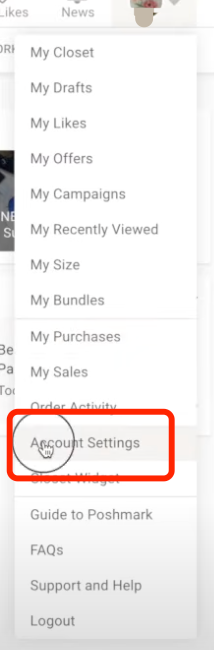
1. Log in to your Poshmark account and navigate to “Account Settings”.
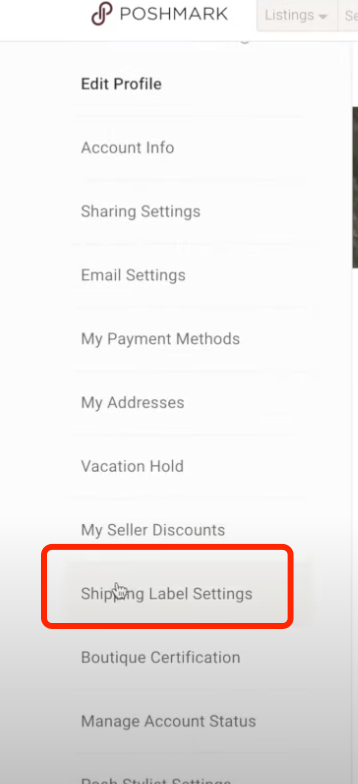
2. In the next window, click on “Shipping Label Settings”.
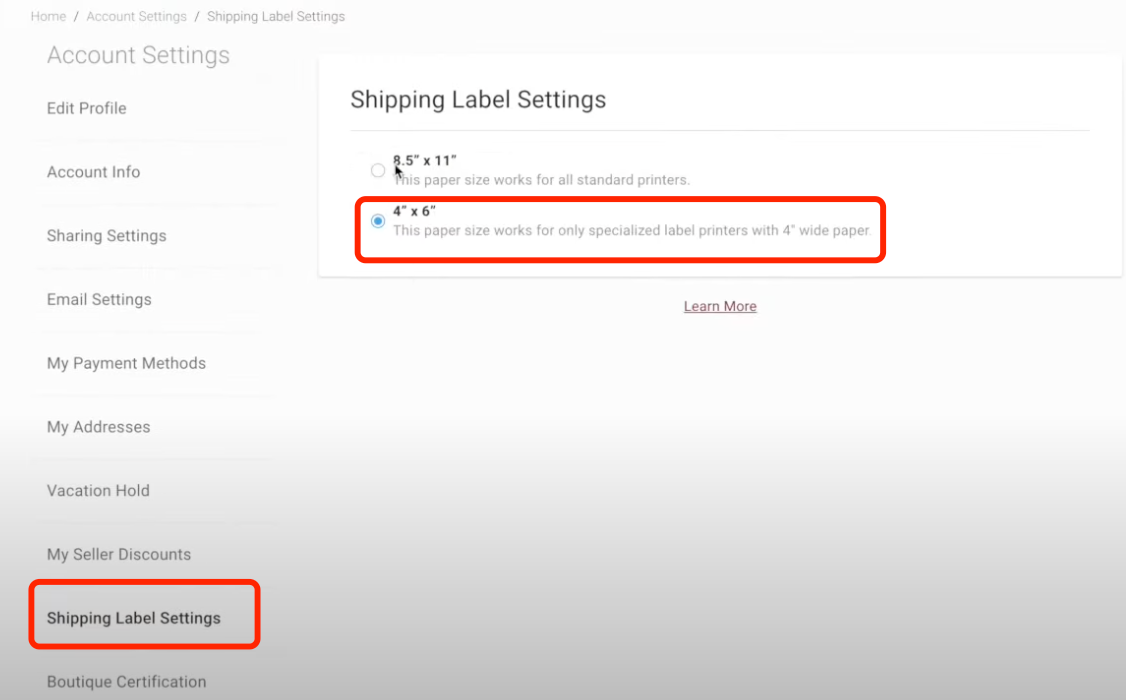
3. Configure the print format to 4x6 inches.
4. Print Your Label
For Mobile App
-
Download our Flashlabel Pro app via this link:
https://knaon.com/blogs/knaon-y41bt/how-to-use-printer-on-the-phone -
Import your PDF into the app and print directly. For detailed step-by-step instructions, please refer to the section titled "Print a PDF Label Using FlashLabel Pro App" in this link:
https://knaon.com/blogs/knaon-y41bt/how-to-use-printer-on-the-phone

If you're using an iPhone, go to "Save Label" and scroll down—you’ll see the "Print with FlashLabel Pro" option (see screenshot). You can print directly from here, no need to save PDFs or images first.

For Mac
-
Enter the preview interface.
-
Select the KNAON Y41BT printer.
-
Choose paper size: 4×6inch.
-
Click Print.
-

For Windows
-
Enter the preview interface.
-
Select the KNAON Y41BT printer.

-
Choose paper size: 100×150mm.
-
Click Print.

If you're using an iPhone with Poshmark, go to "Save Label" and scroll down—you’ll see the "Print with FlashLabel Pro" option (see screenshot). You can print directly from here, no need to save PDFs or images first.


